
Download FlyerGPS for macOS
Download FlyerGPS for macOS. Drag it into Applications, sign in with Discord and pair your iPhone over Bluetooth — about 5 minutes, no jailbreak.
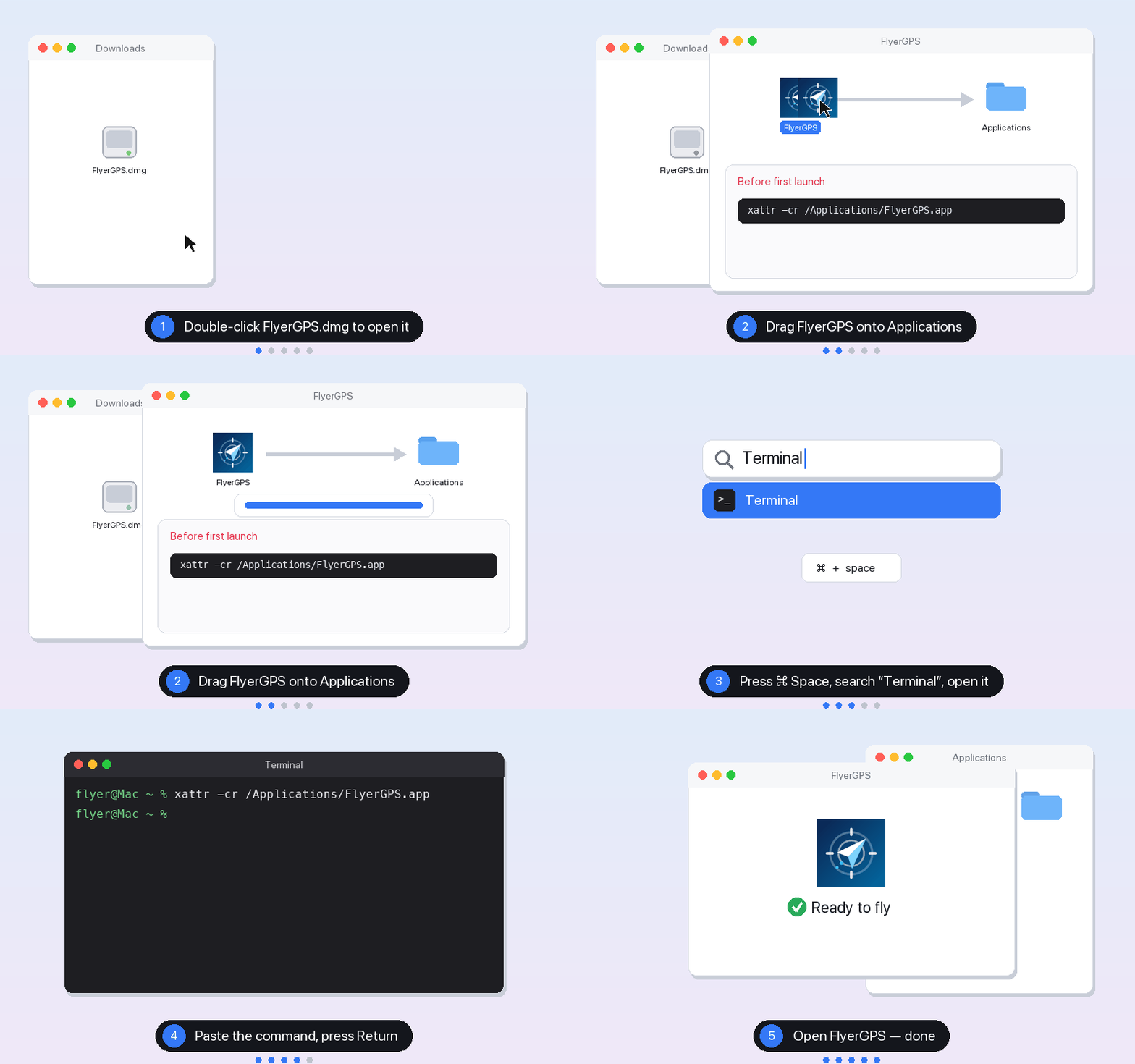
Before you open it the first time
macOS blocks apps that don’t come from the App Store and says the app “can’t be opened” or “is damaged”. Do this once and it opens — and again after each update.
- 1
Double-click the downloaded FlyerGPS.dmg. A window opens.
- 2
Drag FlyerGPS onto the Applications folder in that window.
- 3
Press ⌘ + Space, type “Terminal”, and press Return.
- 4
Copy this command, paste it into Terminal, and press Return. No output means it worked.
xattr -cr /Applications/FlyerGPS.app - 5
Double-click FlyerGPS in Applications.
- The command only removes the “quarantine” flag macOS adds to downloaded files. It doesn’t change any system settings and doesn’t need your password. If you put FlyerGPS somewhere else: type xattr -cr followed by a space in Terminal, drag FlyerGPS into the Terminal window, then press Return. Only do this for FlyerGPS downloaded from this site.
Set up on macOS in 5 steps
- 1
Install
Double-click the downloaded FlyerGPS.dmg and drag FlyerGPS onto Applications. Before the first launch, run one command in Terminal so macOS stops blocking it — the dmg window and the Mac download page show how.
- 2
Sign in with Discord
Click Sign in with Discord, approve in your browser and you’ll land back in the app. Join our Discord server and new members get 5 days of VIP automatically.
- 3
Pair your iPhone
On the iPhone, open Settings › Bluetooth and stay on that screen. In FlyerGPS open Devices — the first time it walks you through pairing: tap this Mac’s name in the iPhone’s Bluetooth list and confirm the same code on both.
- 4
Connect
Click Connect in the device list. Verifying takes a few seconds (needs the internet). Once it says Connected, you’re set. One Mac handles up to 3 iPhones.
- 5
Fly
Open Pokémon GO. Click a spot on the FlyerGPS map (or search / paste coordinates) and choose Fly here. After a long jump, let the cooldown run out before you catch.